




Recently my notebook has been giving me a lot of trouble. When I run too may applications, or sometimes when I’m watching DivX shows, the CPU will suddenly slow down. I can feel hot air coming out of the exhaust port When I place my hand there.
Well, I guess it was time to give the cooling system a cleaning.
If you own a Dell Inspiron 5100 notebook, you may need to do this periodically. Otherwise you may find that your notebook will overheat and shutdown unexpectedly. An alternate solution is to download software that allows you to control your cooling fan. However, the best way to solve this is to clean the fan. The weakness in this notebook model is the ventilation fan cannot be accessed from the outside. You have to take apart your notebook.
This is a step-by-step guide for cleaning your Dell Inspiron 5100 ventilation fan. Warning: This voids your warranty. Warning: Don’t do this if you don’t know what you’re doing. Warning: Watch out for static discharge! Warning: Turn off your notebook before attempting this. You can print out these instructions first or write them down.
Step 1: Lay your screen flat. Make sure you do this with enough lighting.
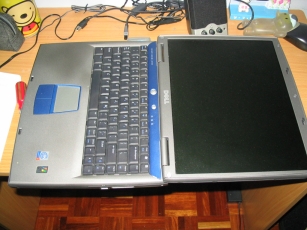
Step 2: Use a screwdriver to pry open the blue panel. There’s a little opening at the right hand side of the panel. (Pardon the dust)
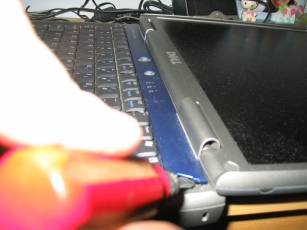
Step 3: Use a screwdriver to remove four screws that are holding the keyboard down. Make sure you keep all the screws in a safe place, and group them together so you don’t mix them up.
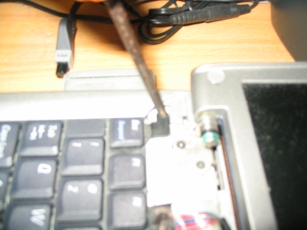
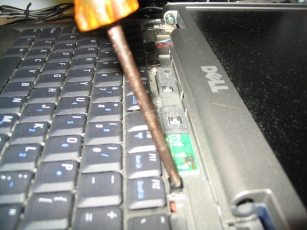
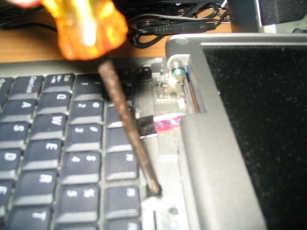
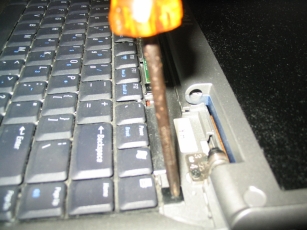
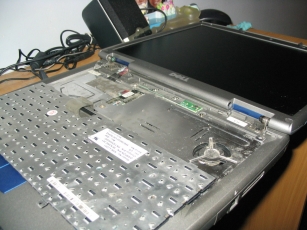
Step 4: Gently flip back the keyboard to lie against the touch pad. Watch out for the cable connecting the keyboard to the motherboard. Don’t break this cable. (Notice how I’ve cleaned the dust from the monitor). You should be able to see the cooling fan on the right hand side. See how dusty it is!

Links to:
Technorati Tags: Dell Inspiron 5100
Pingback: Cleaning Dell Inspiron 5100 Cooling Fan Part 2 » Adino Online
Pingback: Cleaning Dell Inspiron 5100 Cooling Fan Part 3 » Adino Online
Hi Adino!
I stumbled upon your website after googling “my stupid dell insprion keeps shutting off fan not working” and with your guidance, I was able to clean out a glob of dust that was so nasty I nearly vomited…but I just wanted to say thank you! (although I should mention that when I turned the computer back on select keys didn’t work - so I had to pull the keyboard off again and redust again) however, I am completely grateful for you help with this task - you saved me mega bucks in comp repairs for something that took me 20 minutes.
Thanks again!!
Adino: Hi Caitlin! LOL on how Google brought you to my site with such an ‘angry’ search term. I’m glad I was able to help.
Thank you for your kind words. Comments like this really makes my day, and keeps me motivated to carry on blogging!
This reminds me… it’s time to clean my cooling fan again!
Hi Adino,
Thanks for all your help, it was driving me mad I was about
to throw the laptop out to the rubbish until I came across your site in Google!!
In fairness I have the Dell Inspirion 5100 4 and a bit years never caused me a problem
until recently and unfortunatly the warrenty ran out in August just gone!!
I followed your instructions sucessfully and the laptop is back to working order.
I left it on for 3 hours yesterday and it didnt shut down once. The fan was alot quiter and
the bottom didnt heat up at all.
So thanks again
Elaine
Adino: No problem Elaine. Glad I could help
Other than this overheating issue, I don’t find other problems with my Dell Inspiron 5100. Okay, maybe the CD-ROM drive is a bit damaged and can’t pop open by itself. It’s is almost 5 years old now, and still running fine. I would probably upgrade to a new computer next year. Nice to know that many people are still using their Dell Inspiron 5100s.
About 6 months ago my Touchpad stopped working, Dell was Kinda enough to Sell me another. About a Month ago the Keyboard stopped working, Dell was So kinda to sell me another. Then the Fan started going high/low/high shut off…. in final Desperation and Unwillingness to Ever give dell another penny I searched and found YOU! I followed your Very easy steps and Tada! Works Fine it seems! while having this poor little dell in pieces spread over my desk I noticed some discoloration on the back of the heat sink. My best bet is this fan thing had been going on a while and caused the keyboard and touchpad issues.
Lesson Learned! Folks, if you have ANY weird issues check this first!
And yes, the pics of Qtips are real eeuuww as you will see!
Thank YOU ADINO!!!!!
Adino: You’re welcome! I heard that some Dell 5150 owners won a class action suit against Dell because of this issue. Perhaps if you’re in the US, you could consider doing the same for the Dell 5100
Hi Adino,
While you are inside your laptop, you can apply new thermal grease on the CPU. You’ll find step-by-step instructions here: http://support.dell.com/support/edocs/systems/ins5100/en/sm/thermal.htm#1084976
Great tutorial! I linked to you from my site.
Adino: Thanks for the tip and the link!
Thank you so much for your instructions - my husband I were just able to clean out the fan, and it is already running so much quieter and cooler. We were SO frustrated before — thank you!
Adino: I’m glad I could help you Megan.
In fact, I just cleaned out my fan again last night. You’ll find that you need to do the cleaning every six months or so.
Found this via Google…great how-to post!
Adino: Thanks!
Hi There, What luck that I stumbled upon your HOW TO note about cleaning the fan. Who knew? I am going to try it right now.
Thanks.
Ann in Los Angeles
Adino: Hi Ann, hope I was able to help. How did it go?
Hi!
Fixed my laptop with your guide…the only real hard part is prying out that blue panel.
Anyway, when I got it all open I was wondering. Hey, where is that grill? I can’t see it…Then I pulled a 7mm thick wall of dust out of it. The laptop works fine now!
Thanks,
Ewout.
Adino: Haha… the first time I did it, the dust was really thick too! Glad I was able to help you!
Great Site! Before I tried cleaning my fan I monitored my CPU temperature using this free tool http://www.diefer.de/i8kfan/index.html.
While importing CD’s to itunes (when CPU is almost 100% for 10-15 minutes) the temperature would reach 72C with my fans on. After cleaning my fan and exhaust vent the highest I hit is about 56C. There was a layer of dust on the back vent only…
THanks again!
-Chris
Adino: Thanks for the tip, I think I used something similar before. You can also control the fan speed. I set it to the highest speed and it helped for a while. But I found cleaning off the dust works best.
This worked great! After many years of good service my 5100 started giving me troubles and I found your site because the fan was running all the time which I found odd. Cleaned it out and now it works like a charm.
Adino: The Dell Inspiron 5100 is really built to last!
HI! I had my inspiron 5100 laptop for 5 years until I finally decided to clean the fan. I wasn’t much of a techy guy so I didn’t know what to do but with your simple guide, it was as easy as pie. Now when im watching a movie, my temperature is about 53c while idle is 45 while before watching a movie would of been 60c and idle would be 55c. THANK YOU!!! THIS IS THE BEST LIFE SAVER EVER!!
Adino: You’re welcome Sam!
Hi Adino,
Just today cleaned my Inspiron 5100 cooling fan. Didn’t get that much dust out, so was expecting the computer to continue shutting down after about 20 minutes…
Amazingly, it is still on and running strong after two and a half hours of continuous work.
Your instructions were really easy to follow. May I suggest
a career change - make assembly instructions for do-it-yourself assemblies. It’ll make for a much more enjoyable
Christmas morning ;o)
Frank
Adino: I’m glad your Inspiron works better now. I don’t think a career in writing assembly instructions pays a lot!
I purchased a used Inspirion 5150 from a buyer on Ebay, and got a very good deal. It was then that I learned about the heating problem…
Sure enough, the fan cycled constantly and the peak CPU temperature reached 64C. I followed your instructions but was unable to remove the fan from its mount because one of the 3 screws was under the lip of the plastic case. I blew out the fan as well as I could with a half depleted can of compressed air. There was much less of a “potato patch” than I expected; hardly any dust actually… at that point I was loosing hope that my 30 minute excursion in to Geekdom would bring about any real change.
Suffice it to say, after I put it back together, it runs at a consistent 48C!
Thanks very much for your instructions; It really worked out well for me!
Cheers!
Adino: I hope you get many many hours of uninterrupted use on your Dell 5150!
My Inspiron 5100 suddenly quit seeing any wireless connections. I suspect that the internal antenna came loose.
I’ve never opened or repaired a laptop.
To access the antenna, do I enter from the top (as per the above instructions) or the bottom? Anyone know?
Thanks!
Adino: Unable to help you there, my Inspiron 5100 didn’t come with built in wi-fi, I had to get a PCMCIA extension. Anyone has any idea?
Adino,
This tutorial has been a life saver! I found these instructions about a year ago but was too lazy to follow them. I opted for cooling pads. They worked well and my 5100 never shut off when they were running. But after a few weeks the USB power cords tended to stop working. After my second cooling pad died, I looked for this tutorial again. It was a fast, easy, and painless process that has saved me a world of trouble. I can finally sit with my laptop (ha!) on top of my lap without it overheating. I can write papers, watch videos online, and listen to music for as long as I need to without worrying about the computer shutting off.
Screw Dell for not caring. Thank you Adino for saving my 5100!
Adino: I know exactly how you feel, because I felt the same way when I did it to my Inspiron.
thanks for the tutorial! has save me a lot of grief and having to go out and buy a new computer.
Adino: Glad I could help you George!
Pingback: Buying New vs. Fixing
Very useful set of instructions. I just used them to clean out my fan. I noticed the most dust built up towards the back; it made me wonder why they have that big open area between the fan and the back vent, which serves as one big collecting area for any dust that finds its way into the fan.
Adino: I hope the design of the the newer laptops have improved! Otherwise we are going to see this problem happening over again.
My Inspiron 5100 was overheating and shutting off. I followed your excellent directions, and the problem is solved. Thank you so much. You saved me what I am sure would have been a good sized repair bill, and now I am not nearly so intimidated by the idea of doing some of my own work on my laptop. Again, thanks.
Boyd
Adino: You’re welcome Boyd!
Adino, thanks again for showing us how to do this process. I had my laptop sitting for 3 months, and last week I finally had the encourage to take it apart; thankfully, I found your website moments before I took it apart. It works great now!
Thanks again!
Adino: You’re welcome DC!
dell insprion 5100 is durable inspite it overheat because of dust just clean it every 6 months i also owned 5100 for 4 years mine has 37 degC at idleand peak at 58 at full load
note: all laptop overheat if you didnt clean the exhaust system not only dell laptops…
gud luck…
Adino: Ok
Stumbled across your site by searching for “inspiron 5100 overheating” (rather than 5150, which I have). I’ve been struggling with the overheating for nearly a year. Your solution seems to have completely fixed the problem. Unbelievable results!!! Thank you very much for the instructions.
Btw, as mentioned by one of the other posters, for the 5150 one of the screws on the fan are covered by the laptop case. My solution was to unscrew the cpu heatsink (4 large screws - ordered 1 to 4), then to turn the screw that locks the cpu in place. Unlocking the cpu shifts the entire heatsink a few millimeters to the left, which leaves just enough space to unscrew the fan. After cleaning out the dust, make sure that the cpu is properly in the socket, lock the cpu in place, and then tighten the main heatsink screws (begin with 1). Hope that this helps any other 5150 owners who stumble across this great site.
Adino: Thanks Andrew for posting an updated solution for the 5150.
I just posted this up hoping that other 5100 owners would find it useful. I guess I achieved my objective!
Bless you for taking the time to show even technically challenged users (like me) how easy it is to have a cool and quiet computer! Shedding my laptop of a tablespoon’s worth of cat hair did the trick.
Adino: No problem Alex, glad to be able to help!
Hey, I have the 5100 and my charger works and all but when i turned it on with the charger it turns on for 5 seconds then shuts,off any thing will help thx
Adino: Sounds like an overheating problem, a battery problem or one of the components may be damaged. Computers sometimes have an automatic shutoff when there are serious problems. Better get a techie to take a look at it.
Great instructions. Do you have instruction how to replace a power jack on the Dell Inspiron 5100?
Adino: Sorry, I can’t help you there. Better leave that to the pros!
I read this and then cleaned my 5100.
The fan used to run all the time on low and go to high with anything intense going on. The air coming out the back was quite hot. I took the CPU/fan/ and heat sink assembly out and blew it out with compressed. The appeared to only be a thin film of dust over the inside of the fins. Not too bad.
After cleaning though the fan doesn’t run much at all. After the machine has been on for several minutes it will come on for a few seconds and turn off for up to a minute of so. It really runs a lot cooler and the air coming out when the fan is blowing is much cooler. The fan took so long to start the first time that I thought I had left it unplugged or broke something. I took it back apart to check the plug and then had to leave it on much longer before it came on the first time. I have had it since it was new and I don’t remember the fan ever turning off completely. Probably just my memory going bad.
Thanks for the write up. Great job.
Now if I could just get some more range from my internal wireless when I am in Hotels. Might have to hack an external antenna.
Gary
Adino: Thanks Gary.
Thanks so much for your instructions on cleaning the dell 5100. It made the job so easy. The photos were a big help and made the text easy to follow.
Adino: You’re welcome, Perry. Thanks for visiting my blog!
Wow! That’s all I can say, wow! I bought my Dell Inspiron 5100 for $40 from someone on Craigslist. After a few days, it started shutting down after 30 minutes or so. Great, I thought, I just bought a lemon. On the off-chance that the laptop wasn’t completely dead, I googled “inspiron 5100 overheating” and ran across your article on cleaning the heat sink fan. I printed the instructions and went to work on taking apart the laptop. Sure enough, there was a gob of dust/lint in the fan well. I cleaned it out and — pow! — now it’s like I’ve got a brand new computer! Makes me so happy I didn’t blow $40 on the used laptop, plus the money I spent on a new battery, ac adapter, etc. You’re a Godsend, Adino! Thanks a ton!
Adino: You’re welcome!
Pingback: Taking apart and cleaning Dell Inspiron 5100 laptop >> Inside my laptop
Wow! It works. I finally found out the website to resolve the overheat issue on my Dell computer. The step by step instruction and photos are very useful. Thanks a lot.
Adino: Glad to help! Recently I took out my 8 year old Inspiron and it still worked